In this article we are going to see how to partition a existing table in a database. In my working place I got a request from client to partition an existing table, I have searched in BOL but couldnt find the exact detail how to do it. Ive figured out that and Implemented successfully, Im Just sharing the steps with you so that this might be helpful to you.
To show this with an example I would like to do the steps below
- Create a table and populate the data first
- Create the partition Function
- Creation the partition Scheme
- Create Clustered index on the table using the partition scheme to move the datas to the partitions
Applies to
- SQL Server 2005
- SQL Server 2008
Lets do this step by step
CREATE DATABASE partitiontest
GO
USE partitiontest
GO
CREATE TABLE pt(id INT IDENTITY(1,1), val INT)
Lets populate some data into the table, so that we can use this table as source table
DECLARE @t INT
SET @t=10000
WHILE @t>0
BEGIN
INSERT INTO pt (val) VALUES (@t)
SET @t=@t-1
END
----Verify data to the table
SELECT * FROM pt
Now we are ready with our source table, lets decide the plan for partition. My requirement is now to split the table with values less than 4000 to a filegroup and the values between 4000 and 8000 to another filegroup and finally values greater than 8000 to an filegroup. To do this we need to have 3 filegroups in the database and files associated to the filegroups, lets create filegroups and files
--for ranges less than 4000
ALTER DATABASE partitiontest ADD FILEGROUP FG1
--for ranges between 4000 and 8000
ALTER DATABASE partitiontest ADD FILEGROUP FG2
--for ranges greater than 8000
ALTER DATABASE partitiontest ADD FILEGROUP FG3
--Add file to FG1
ALTER DATABASE partitiontest ADD FILE(name='FG1',FILENAME='C:tempfg1.ndf') TO FILEGROUP FG1
--Add file to FG2
ALTER DATABASE partitiontest ADD FILE(name='FG2',FILENAME='C:tempfg2.ndf') TO FILEGROUP FG2
--Add file to FG3
ALTER DATABASE partitiontest ADD FILE(name='FG3',FILENAME='C:tempfg3.ndf') TO FILEGROUP FG3
Now filegroups are ready lets create a partition function to specify the value ranges
CREATE PARTITION FUNCTION val_partition_function (INT)
AS RANGE RIGHT FOR VALUES('4000','8000')
Ok, partition function is ready the next step is to create a partition scheme and associate the ranges to the correct partition
CREATE PARTITION SCHEME val_partition_scheme
AS PARTITION val_partition_function TO (FG1,FG2,FG3)
Everything is done and we are ready to split the table, this table doesnt have clustered index hence Im going to create one, if your source table has clustered index then drop it and recreate it specifying the partition scheme
/* Syntax for Clustered Index to specify partition scheme
CREATE CLUSTERED INDEX indexname on tablename(clusteringkey)
ON partition_scheme(partition_column)
*/
CREATE CLUSTERED INDEX ix_pk_pt ON pt(id) ON val_partition_scheme(val)
Thats it you have completed partitioning the existing table. To verify the partitioning use the script below
Check the table partitioning
SELECT * FROM sys.partitions
WHERE OBJECT_ID=OBJECT_ID('PT')
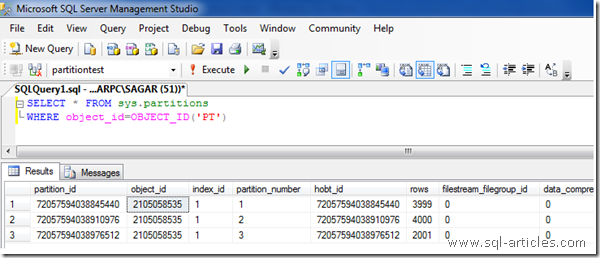
Lets select a data and check in which partition does the data exists. Im selecting 5061 value which should reside on partition 2 as per our configuration.
SELECT *,$partition.val_partition_function(val) AS 'Partition Detail'
FROM pt WHERE val=5061
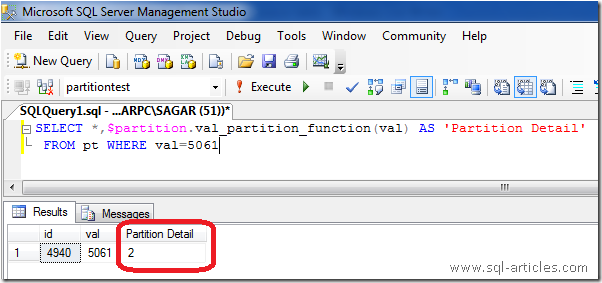
Thats it you have completed partitioning the existing table and done a cross verification.


Leave a Reply