bet365 UK

wordpress joomla template

Deploying Data Tier Application (DAC) Package

Written by VidhyaSagar on . Posted in General

Last week I wrote an article for Creating DAC packages. Today I’m going to cover how to deploy a DAC package. It’s very easy  for the DBA’s to deploy the DAC in few clicks that means in few clicks database implementation will get completed, it’s as simple as like that. I’m going to use the DAC package which I created last week. To deploy a DAC package proceed the steps below

  • Connect to SQL Server Database Engine using SSMS
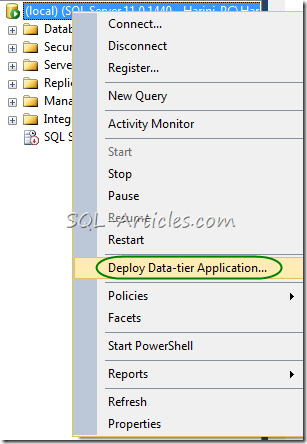
  • Right click on the server, you can find the option “Deploy Data-tier application” as shown below
deploying_dac_1

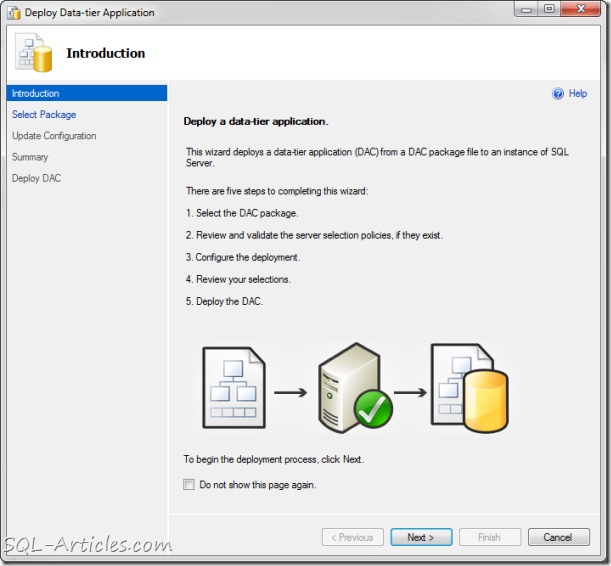
  • Once you clicked deploying window gets popped up as shown below with introduction screen, click next to proceed
deploying_dac_2

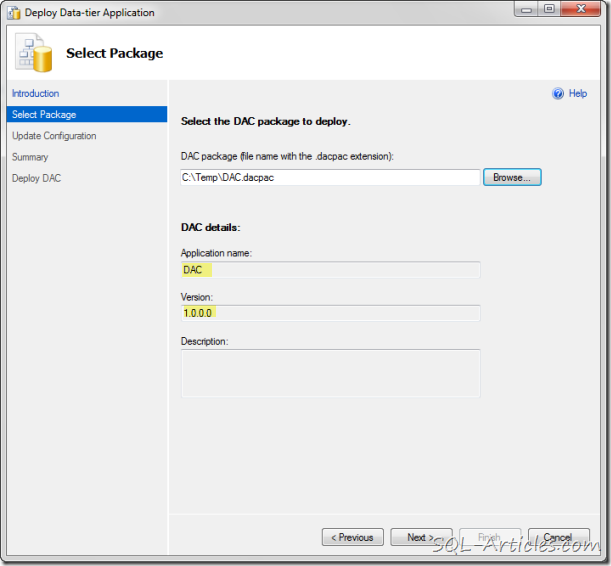
  • Now you have the option to select the DAC package, this package will be provided by the developers for deployment. Select that package, it will show the name and properties as shown below
deploying_dac_3

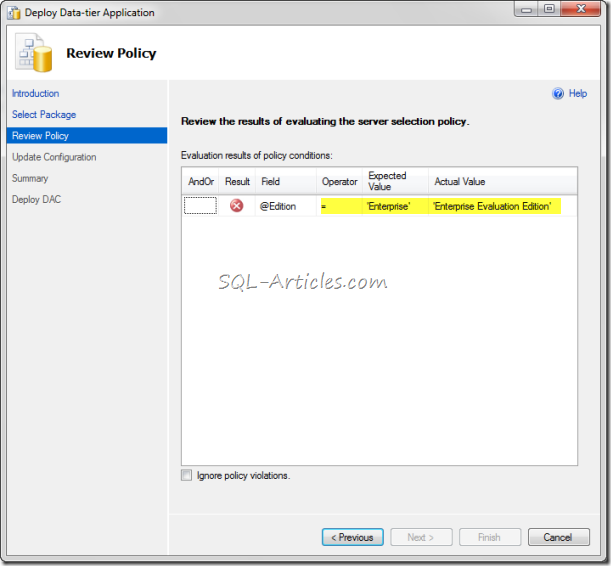
  • After selecting the package click next to validate the policies (if you have included anything during creation). In this example if you remember I’ve added a policy check to make sure we have Enterprise edition installed, I’m running this deployment in Enterprise Trail edition hence I got a error however I still proceeded skipping it as shown below
deploying_dac_4

  • In the next screen it will ask you for creating the database. You can specify the dbname and path for new database creation as shown below
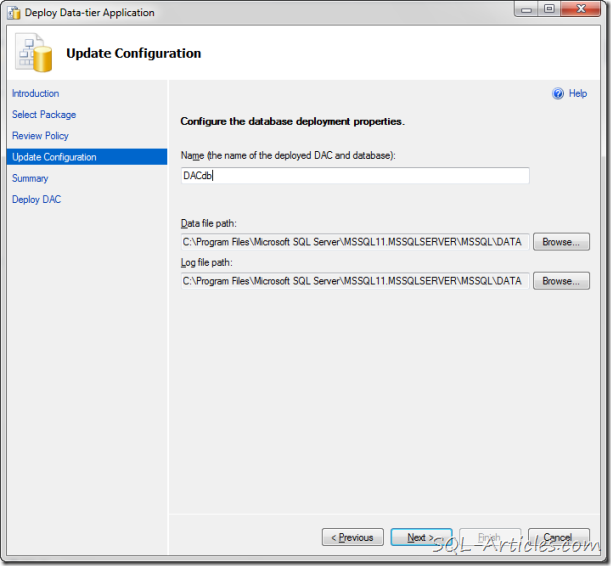
deploying_dac_5

  • In the next screen it will give you the summary of the deployment as shown below, cross check it and click next to deploy the DAC
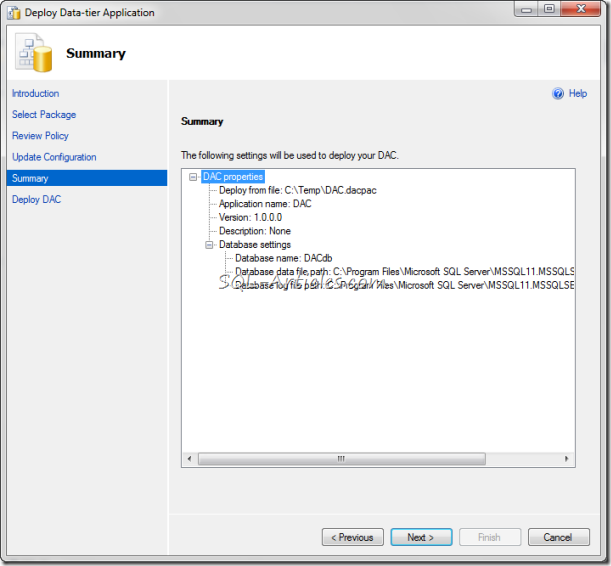
deploying_dac_6

  • In this screen you can get the progress of deployment, after successful deployment click on finish to close the wizard.
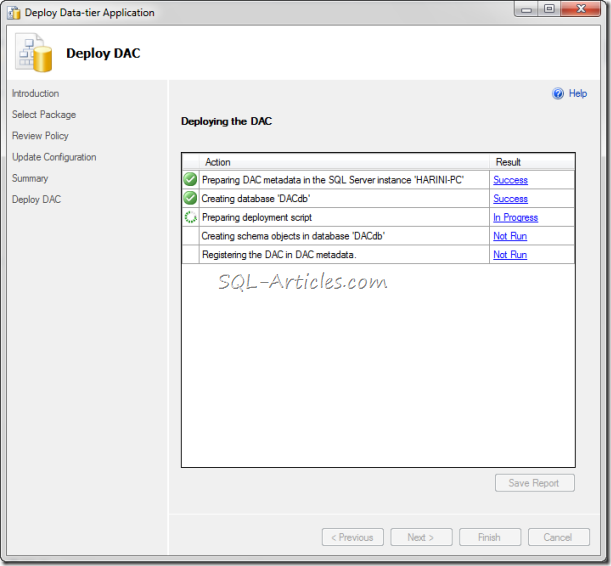
deploying_dac_7

So my deployment is completed with few clicks, let me check the deployment. From the screenshot below you can see the objects I’ve added to DAC package. Thus this feature is really helpful for SQL deployment and it’s no more time consuming deployment for DBA’s.
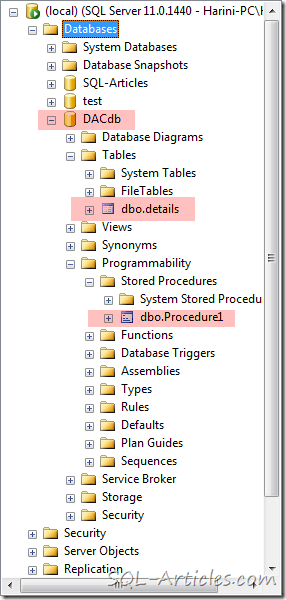
deploying_dac_8

VN:F [1.9.22_1171]
Rating: 0.0/5 (0 votes cast)
VN:F [1.9.22_1171]
Rating: +1 (from 1 vote)

Tags: , , ,

Trackback from your site.

Leave a comment

*

Recent Comments

Engin Ardıç

|

Thank you for nice article! That’s so helpful for me.

VidhyaSagar

|

Sure will plan something when you come here

Mohamed Kabiruddin

|

Hi Vidhysagar & Team,
I am happy to hear that the SQL Server User Group in Chennai is active and going strong. I came across your blog and wanted to attend one of your user group meetings.

I am basically a Chennai-ite and work as a Microsoft BI Consultant in Australia. I am an active member of PASS SQL Team in Australia and have also presented for PASS SQL Saturdays in Australia. I visit Chennai almost every year for holidays and I would love to attend one your sessions. I am happy to speak on any particular topic of interest and discuss case studies on some of the projects and the industry in Australia as well.

I recently presented on “Agile BI with SQL Server 2012″ for PASS. I am coming down to Chennai this August 2013 for a fortnight. Please feek free to get in touch.

Cheers,
Mohamed Kabiruddin

admin

|

@aj — Both the scripts are same. In my example I’m passing the output value to a variable. In your example you aren’t passing it instead you make the task failure or success.

ajssis

|

You are creating a lot of extra steps that are not required in the Script task. You fail to see the line right after your code that is
Dts.TaskResult = (int)ScriptResults.Success;

The opposite of this is
Dts.TaskResult = (int)ScriptResults.Failure;

The code you should be using is
// Check if the file exists
if (File.Exists((string)(Dts.Variables["FilePath"].Value)))
{
Dts.TaskResult = (int)ScriptResults.Success;
}
else
{
Dts.TaskResult = (int)ScriptResults.Failure;
}

If the file exists then the Script task result will be “Success”. If the file does not exist the Script task results will be fail.

Then all you do is set the Success direction flow (the green line) to go to your data flow task. If the result is Failure then the Failure direction flow (the red line) will go to your Update error task. Be sure to RIGHT-CLICK the direction flow and select “Failure” from the pop-up menu.

The best bonus by bet365 Ελλάδα 100% for new user.

Full Joomla 3.0 Theme free theme.