Performance Data Collector is one of the new features thats accompanied from SQL Server 2008. If you are a DBA , you know its very hard to get performance data from necessary inputs. We will get the data from Perfmon (system monitor), profiler, DMV etc and correlating this data is very hard, implementing the same process or scripts across your environment is also time consuming one. To Overcome this MS has added Performance data collector feature in SQL 2008. In a Nutshell performance data collector will collect performance data (integrating all your data from your server), upload it in centralized management data warehouse (MDW) in relational format and finally allows you to see reports in graphical format.
By using this feature you are getting the data in standard format and storing it in relational format, so it will be easy to correlate the data. Moreover it will allow the data to be stored in centralized server so you can query the single server to see reports of all your server in single location.
Availability
This feature is available in the following editions of SQL 2008 and SQL 2008 R2
- DataCenter (only for R2)
- Enterprise
- Standard
- Web
- Workgroup
Pre-requisite
-
Create Login and provide necessary permission to upload the data
-
Make sure a centralized server is already configured for get MDW data, else configure it
Configuring Centralized Server for Data Collector
Before we stepping into configuring Data collector service, we need to configure a centralized server to store these data. Lets configure the centralized server now
-
Connect to the server, Expand Management folder and right click on Data Collection and click on Configure Management Data Warehouse
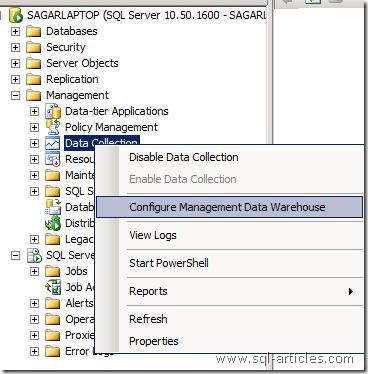
-
Click next on the welcome screen
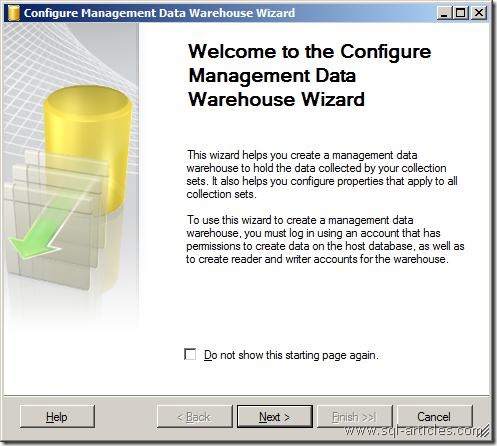
-
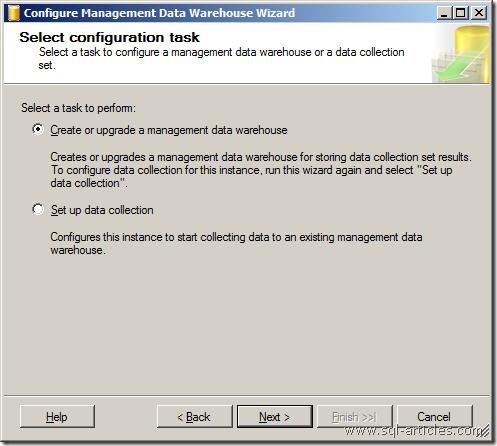
In this windows you have the option for configuring the centralized server. Select Create or upgrade a management data warehouse option and click next
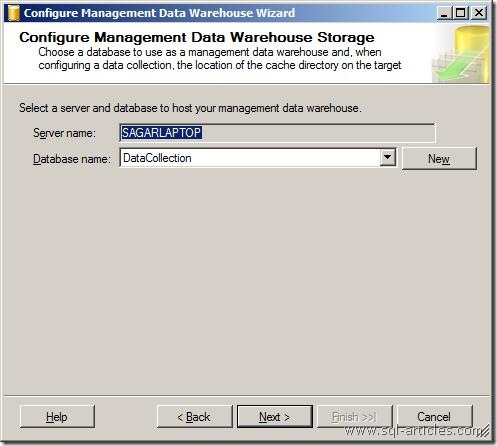
- In this window it will choose your local server as centralized server and you have the option to select the database. Either you can use the existing database or you can create a new one. To create new database click on New button, a new database creation window will be popped up.
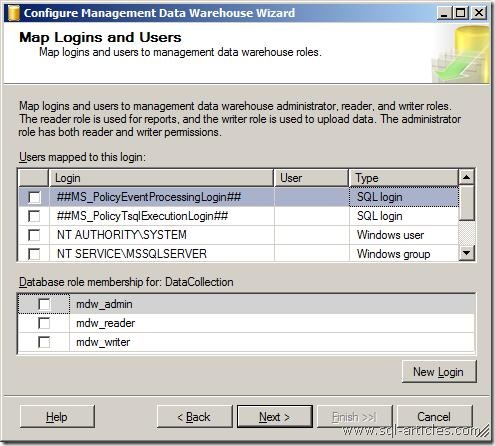
- In this window you will be providing necessary permissions to the logins to view or modify data. You can click on individual login and select the role for that login and click ok. Its not mandatory to set the permissions now you can also set it later.
|
Role Name |
Role Description |
| mdw_admin | Has both reader and writer permissions |
| mdw_reader | Provides read access only to view reports |
| mdw_writer | Provides permission to modify and upload data to MDW |
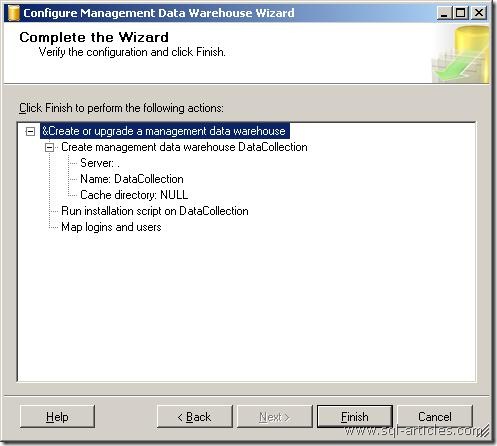
- At last it will show the summary description, if you find everything correct then click on finish to configure the centralized data warehouse server.
Configuring Data Collector in instance
- Connect to the server, Expand Management folder and right click on Data Collection and click on Configure Management Data Warehouse as shown above
- Now its time to configure data collector at instance level since centralized server is configured and ready to accept data. Pass the welcome screen
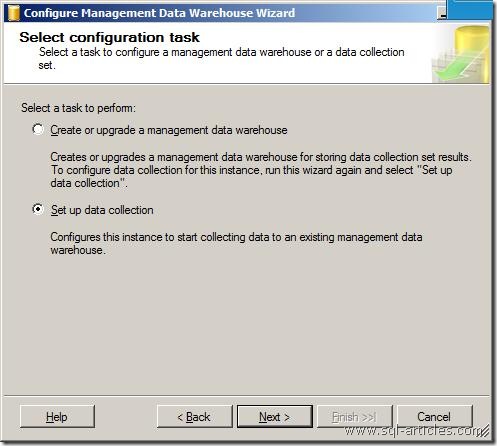
- Select Set up data collection in this window to configure data collector. It will capture the following details into the db
|
Version |
Details Captured |
|
SQL Server 2008 |
|
|
SQL Server 2008 R2 |
|
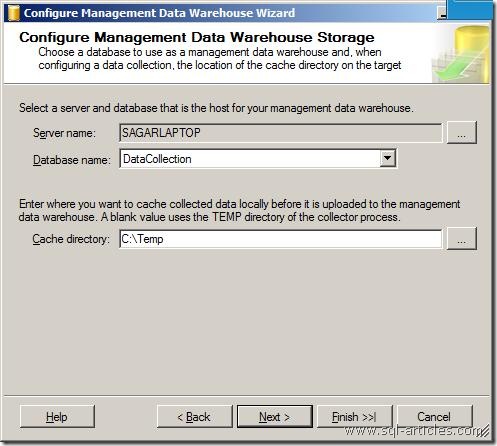
- In this window select the centralized server and the data warehouse db. In this case its SAGARLAPTOP and DataCollection database. You can find one more option here and its cache directory, this will allow the data to be cached to the folder and uploading it later. Data collector works in two modes as follows
|
Mode |
Description |
| Cached | In this mode all the captured details will be stored in the path (i.e cached) and it will be uploaded to db some time later. This mode might give you some performance improvement |
| Non Cached | In this mode details is captured and it will be uploaded immediately |
- Once information is provided you will be shown with the summary details of the configuration you have chosen. If you found its correct just click on Finish button
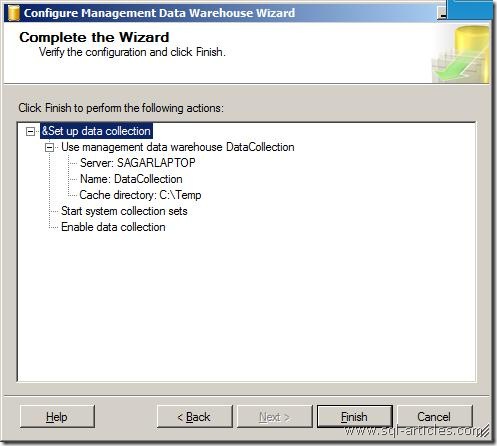
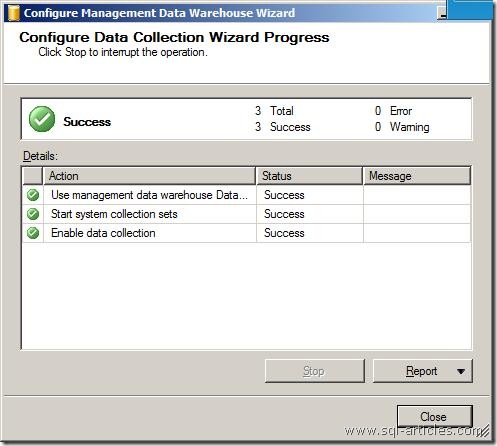
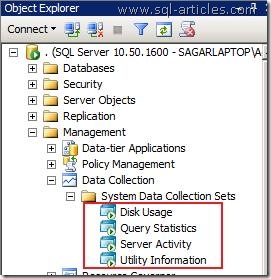
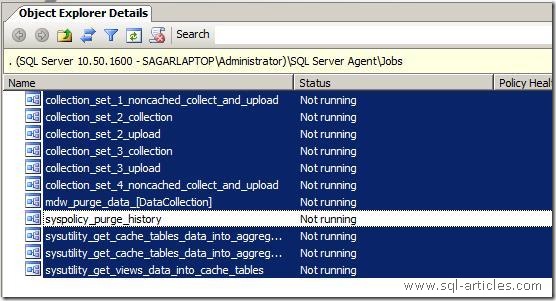
Thats it you have done configuring data collector. To verify the configuration you can expand Data Collection and you can find the details configured, set of jobs is also created so expand sql agent to check whether the jobs are created as below. Make sure SQL Agent server is running properly to capture the performance data.
Leave a Reply